Using Blackboard:
Change Your Password
Your MyHarper Student Portal password is synced with your Blackboard password. If you cannot remember your password, you will need to change your MyHarper Student Portal password in order to login to Blackboard again.
- Request a change to your MyHarper Student Portal password by visiting
http://my.harpercollege.edu.
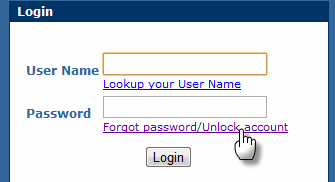
- Click on the Forgot password/Unlock
account link located underneath the
Password text box.
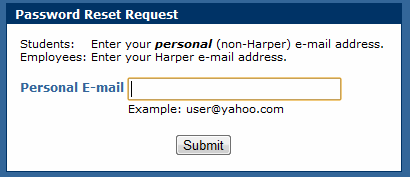
- Next, enter a personal email address (not your Harper College email
address) so that you will receive the password reset information. Then, click the Submit button.
- Use the information sent to your personal email account to reset your password for your MyHarper Student Portal.
- Login to Blackboard using your new MyHarper Student Portal password.
Note: Your Blackboard password is always the same as your MyHarper Student
Portal password, and works for all Blackboard course sites.
Need Help?
If you have difficulty entering your Username and/or Password,
please contact the Student Service Desk.
- Telephone:
Off Campus: 847.925.6866
On Campus: x4357
E-mail:
studentsd@harpercollege.edu
Adapted from materials provided by the Harper College Center for Innovative instruction.